

Installing a virtual private network (VPN) on an iPhone or iPad is easy. The days are gone when Apple users had to be content with the leavings from the Windows ecosystem — in 2026, all the best VPN services have secure, user-friendly iOS apps on par with every other platform. If you’ve decided to add a VPN to your iPhone to stay anonymous online and change your virtual location, you’ve got plenty of great choices.
Since you’re here, chances are you’re familiar with the benefits of using a VPN, including security on public Wi-Fi and the ability to explore streaming libraries in other countries. But you may still be daunted by the process of actually choosing, installing and configuring a VPN on your iPhone.
In this article, I’ll walk you through the steps, including how to configure a VPN manually without going through a service. Check out my how to use a VPN piece for more general information.
How to choose an iPhone VPN
One of the trickiest parts of installing an iPhone VPN is picking the right service. That brings us to our first pro tip: Don’t just go to the App Store and search on “VPN.” That will simply front-load whichever vendor(s) are paying for top placement (note the little “Ad” icon) as well as a laundry list of free services that come with big caveats. There are dozens of mobile VPNs out there, and many of them don’t put the user first (for example, I reported last year on popular VPNs that failed to disclose shared security flaws). Choosing hastily can leave you stuck with an iOS VPN that’s either mediocre or actively harmful.
Before downloading an iPhone VPN, do some research into the provider’s background. A dependable VPN should have a well-written customer support page, a clear timeline of its history and a way to tell at a glance who actually owns and operates it. Check the reviews on the app store — it should have at least several hundred, almost all 4s and 5s.
iPhone users have a particular advantage here: several VPNs let you download their iOS app and start using it without paying. You can use this free trial period to put the VPN through its paces. Start by testing its speed using Ookla speedtest or a similar app. You should also use an IP address checker to make sure it isn’t leaking; to confirm this, just check your phone’s IP address before and after connecting to the VPN and make sure it’s different the second time.
To keep things simple, my top recommendation for all platforms is Proton VPN. Out of all VPNs, it strikes the best balance of solid security, fast performance, useful features and a commitment to user privacy. Other iPhone VPNs I love include ExpressVPN, Surfshark and NordVPN.
How to install a VPN on your iPhone
Installing an iPhone VPN is like installing any other app. Just go to the App Store, find the VPN you’ve chosen and download it onto your phone. When it finishes downloading, open the app to grant permissions and finish setup. However, since there are a couple of potential sticking points, I’ll run through the steps in more detail.

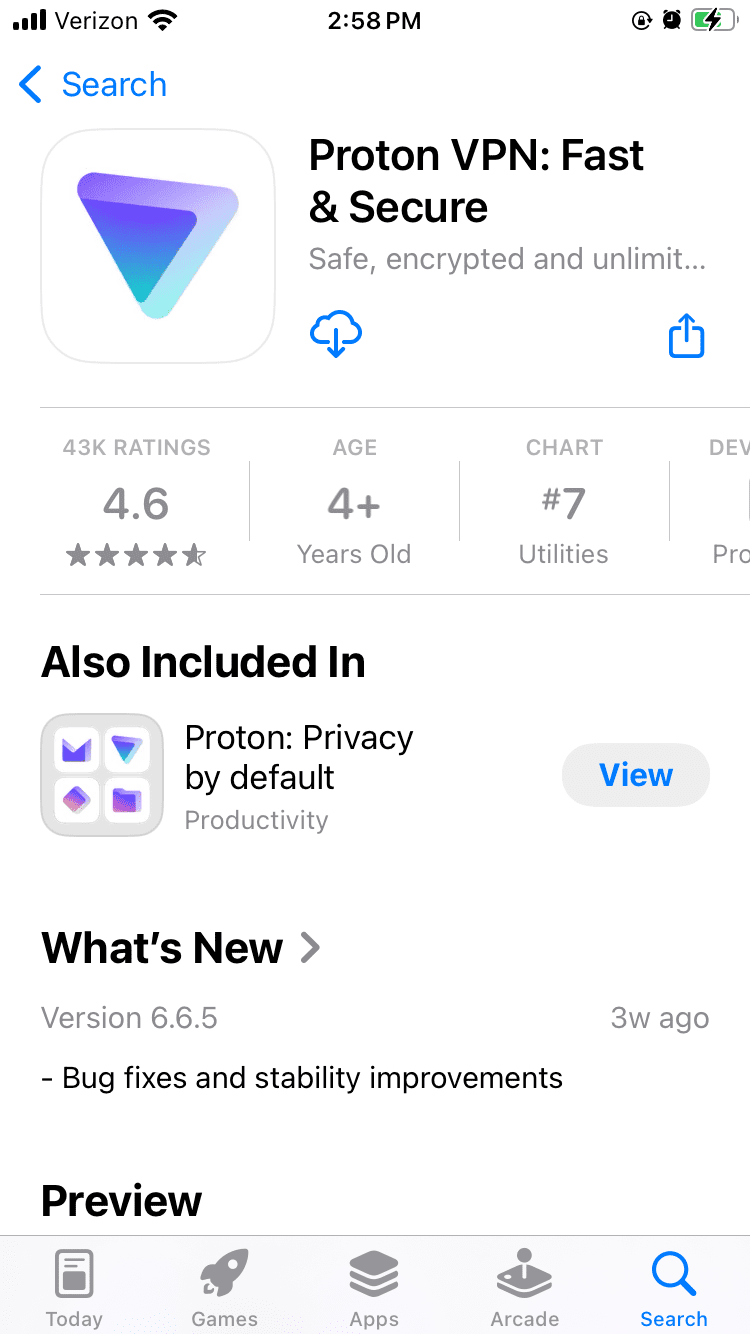
Proton VPN on the iOS app store. (Sam Chapman for Engadget)
-
Tap the search bar and type in the name of your chosen VPN. Hit Search and look through the list of results. Be careful to pick the right one — there are some “mockbuster” VPNs that try to snare people looking for well-known names. As a rule, the one with the most reviews is the service worth using.
-
On the page for the VPN app, tap Get. Enter your Apple ID and password to begin the installation.
-
Once installation is complete, either tap Open in the App Store or find the new VPN icon on your home screen.
-
Create a VPN account with a username and password. Most services let you do this within the app, but you may have to shift temporarily to a browser, so make sure you’ve got internet access.
-
Choose a subscription. If there’s a free trial, grab it and use it to test the VPN. If not, or if it’s already expired, choose a plan that fits your budget and needs. Longer-term plans tend to save you money on average, but cost more at the start.
-
On the VPN app, log in with your new credentials. You’re now ready to get started.
If you aren’t interested in paying for software right now, you can still get an iOS VPN. Check out my list of the best free VPNs, which all have iPhone apps. We also constantly update a curated list of the best VPN deals for bargain hunters.
How to configure and use a VPN on your iPhone
An iOS VPN is generally usable with the default settings. Even so, it’s a good idea to look through the options — you may not end up using all of them, but many of them are vital security checks or important quality-of-life boosters.

Proton VPN’s NetShield content blocker on iOS. (Sam Chapman for Engadget)
Here are some quick steps to make sure you’re getting the best performance. These settings are in different places on each VPN, but most can be found by clicking a button with a gear icon, or any page labeled “settings” or “preferences.”
-
Turn on the kill switch. This will protect you from broadcasting any data the VPN hasn’t encrypted. In the event the VPN suddenly disconnects, the kill switch also cuts off your internet connection.
-
Set the VPN to always reconnect automatically if it disconnects. The method for doing this varies between services, so check the VPN’s help page. Some (like Proton VPN) have an always-on VPN setting in the app itself, while others (like ExpressVPN) handle it through iOS settings.
-
Configure split tunneling. Not many iPhone VPNs have this option, but if yours does, you can use it to let certain apps or websites skip the VPN tunnel. Make sure to only bypass the VPN on sites and apps that share no sensitive information, or that refuse to work with a VPN active (some banks are like this).
-
If your VPN has a feature for blocking ads and malware domains, I recommend using it — the worst it can do is not work. Some also include parental controls, in case you’re setting up the VPN on your child’s phone.
-
Create shortcuts. Sometimes called Profiles, this relatively common feature lets you connect to the VPN and open a certain website with one tap.
-
Decide when and how you want the VPN to send you notifications.
-
Check available protocols. It’s almost always best to let the VPN pick for you, but if you want to choose for yourself, IKEv2 is generally the fastest.
-
Look over the server list to see what choices are available.
When choosing a VPN server, think about what you need the VPN for. If you’re just using it for privacy, pick the fastest server (or let the VPN app choose it for you). On the other hand, if you want to watch a movie or TV show that’s only on streaming in another country, choose the fastest server in that country. If you’re on a good VPN, it still shouldn’t slow you down too much.
If you have the address of a VPN server and the necessary credentials, iOS lets you set up your own VPN and connect directly. This is less convenient than using a provider app, since you need to know the details about every server you connect to, but it’s nice if you’re worried about trusting your privacy to a third party. It can also be convenient for quickly accessing a work or school VPN from your phone. Here’s how to do it.

Manually setting up a VPN connection on iOS. (Sam Chapman for Engadget)
-
Open the Settings app. Scroll down and tap General.
-
Scroll down again and tap VPN & Device Management. Tap the word VPN on the new page, then tap Add VPN Configuration. You should reach the screen shown above.
-
Make sure Type is set to IKEv2, then enter the Description, Server and Remote ID for the server you’re connecting to (plus the Local ID if there is one).
-
Your source for the server information should also have told you if it authenticates access with a username/password or certificate. Pick the correct option, then enter the credentials required.
-
Tap the Done button or the blue checkmark at the top-right of the screen.
-
You’ll arrive back on the previous menu with your new VPN option available. Toggle it on to connect. To turn it off, return to the same menu and deactivate the switch.
Do you need an iPhone VPN?
Whenever you get online, your internet service provider (ISP) assigns an IP address to your device — a unique fingerprint that follows you throughout the session. Your ISP may sell this knowledge to marketers to target ads at you, or in worse cases, collaborate with governments willing to violate their citizens’ rights to privacy.
When you use a VPN, though, your real IP address is hidden behind that of the VPN server, so nothing you do on the internet connects back to you. That’s why I always advise using a VPN on any device, including iPhones, that connects to the internet. It’s even more important on the unprotected public networks you sometimes find in cafes and hotels. On the fun side, you can also use a VPN to change your virtual location to show you different content libraries on Netflix and other streaming platforms.
One more thing: I often hear iPhone users ask whether they need a VPN, since iCloud Private Relay comes standard on iOS devices. Just to clear this up, iCloud Private Relay is not a VPN. As you can see from this support page, your ISP can still see your real IP address when it’s active.